Macintosh Security: Phishing & Trojans & Rogueware, Oh, My!
Everyone has heard that computers running the Mac OS X don’t have the same problems with viruses that plague many Microsoft Windows machines. Mac OS X itself is designed with technologies and layers of built-in security that provide protection against most malicious software (malware) and security threats right out of the box.
Even with all of its built-in protections, however, there are still a few kinds of security threats that Mac users need to be aware of and guard against! The recent appearance of a clever fake security program specifically aimed at Mac users makes this a great time to review potential threats.
 “MacDefender” (or “Mac Security”, or “MacProtector” …)
The most specific, critical and time-sensitive warning that we can give you at this point is not to install a software package called MacDefender. MacDefender is a very polished Trojan Horse or Rogueware (we’ll go over what that means later in this post) that is apparently being delivered primarily through fake Google image search results at the moment. There are many detailed reports of what it does and how it works and I’ll link to some of those at the bottom of this post.
The short version is that you’re browsing the Internet and you end up on a site that starts warning you that your Mac has viruses. If you click anywhere on the page your Mac downloads and tries to automatically install a software program named BestMacAntivirus2011.mpkg.zip. It will require your password to install – if you don’t give it your password it can’t do anything. Don’t give it your password. Close the web page, even if it warns you that you won’t be protected from viruses.
At this point, Safari is automatically blocking most known sources of MacDefender with a warning about malware.
Update: the “MacDefender” package has been updated and may have different names including, but not limited to, “Mac Security” and “MacProtector”. They all work the same way.
Social Engineering
MacDefender fits in the broad category of security threats that use Social Engineering. Social Engineering, from a technology perspective, is the act of manipulating people into providing confidential information or into performing actions that allow a program access to privileged information or resources. Basically, it’s today’s version of a “con” or “confidence game.”
In any type of Social Engineering trick, the goal is to get you to think that the request for information or actions that you have been directed to take are legitimate. Their focus is not on technical vulnerabilities in your computer or your software but, ironically, on your very fear of theft, viruses and intrusion. Coupled with the average user’s lack of in-depth knowledge of technology it’s not surprising that some of these tricks are quite successful at getting at our information.
The best way to thwart social engineering tricks to to be aware of them.
Phishing
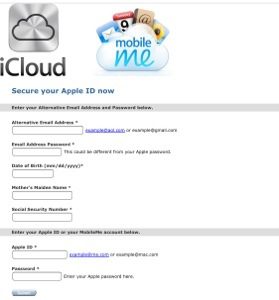
Phishing is the official name for all of those emails that you get that are trying to get information about your bank accounts, usernames, passwords, credit cards, etc. Sometimes they’re easy to spot – full of bad grammar and misspellings or promises of large sums of money. Recently we’ve seen much more sophisticated versions, however, that try hard to look like legitimate email from your bank, PayPal, eBay, etc. Phishing emails are pretty easy to avoid, however. If you get an email that looks like it’s from your bank, don’t click any links in the email. Instead, go to your web browser and access your bank’s site as you normally would – by using one of your bookmarks or by typing in the URL manually. If there’s something you need to do they’ll let you know once you log in there.
Trojan Horse
A trojan horse is malware that masquerades as real software. The name is derived from that of the original Trojan Horse and the intent is the same – to trick you into ushering it through your walls by pretending to be something positive.
An example of a true mac trojan horse was the “AS.MW2004.Trojan” discovered in 2004. This was a VERY small program available on peer-to-peer file sharing networks that tried to pass itself off as a free installer for a pirated version of Microsoft Office 2004 for Mac OS X. If you downloaded, installed and ran the trojan it would attempt to delete all of your documents.
Preventing a trojan horse from getting into your Mac is not too challenging. Only get your software from legitimate sources and be especially wary of software you didn’t intentionally download.
Rogueware and Scareware
Rogueware like MacDefender is rogue security software. It is typically classified as a particular type of trojan horse that masquerades as software to protect or clean your computer. This type of software is also often referred to as scareware as it tries very hard to scare you into installing it by telling you that your computer is already infected with other kinds of malware. If you ever have any doubts about installing a piece of software, ask an expert!
Resources
Here are some descriptions of how the MacDefender rogueware works.
TidBITS Safe Computing: Beware Fake MACDefender Antivirus Software
New ‘MACDefender’ Malware Threat for Mac OS X – Mac Rumors
Update: Intego has posted a nice video showing the curious exactly how the MacDefender rogueware looks to the end-user. See it at:
Update: Apple has published a KnowledgeBase article on MacDefender and how to remove it. A MacOS Update is due soon with built-in protection.
If you think you have been compromised with it, be sure to let a Mac consultant know! Its very easy to remove but if you give it your credit card number you’ll need to do some extra work to protect your finances.
Have you encountered any Macintosh Malware? Do you use any Mac security software? Let us know in the comments!

 I was cleaning up the drive on my MacBook Pro earlier in preparation for an overseas consulting trip and noticed that my copy of Google Chrome was taking a ridiculous amount of drive space. I use Safari almost exclusively but keep copies of Chrome, Firefox, OmniWeb and a few other browsers around for compatibility testing.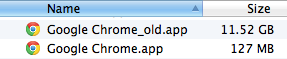




 “MacDefender” (or “Mac Security”, or “MacProtector” …)
 MsgFiler
 Why Integrate Calendars